|
Starlight Site Operating
Manual | Where
to upload your files:
Configuring your FTP
clients:
The
Home Directory:
Your html files, and or the files you want
to make accessible to the World Wide Web must be uploaded to your account.
When you first FTP into your account, you'll be taken to your "Home"
directory. Don't confuse this with your "web directory." The
home directory is "not" accessible to the World Wide Web;
it's a private directory where critical system files reside. DO NOT
delete files that have been created by the system, otherwise your web
site may disappear into cyber-oblivion!
The
public_html and
www
directory - (Where web accessible files are placed)
These are the two directories, where files
you want accessed from the web must be placed. Open the folder "public_html"
, which is your "web accessible directory." The folder named
"www" is actually a shortcut to public_html, (both of them
take you to your web directory). Upload the files you want accessible
to your visitors and feel free to make the appropriate sub-directories
you'll require.
Configuring
FTP Clients:
Configuring
Cute FTP
Based on version 4.2

Please note that there are a number of older
and current versions of Cute FTP floating around. As a result, some
of the instructions provided here cannot possibly reflect all the versions,
which have been released in the past 5 years. The only small difference
you may encounter is where some of the options can be found (depending
on the client version you're using). In any event, everything is pretty
well much the same. Let's get started:
1. Open Cute FTP
2. Select "File"
3. Select "Site Manager"
4. Select "New"
Options
you'll see:
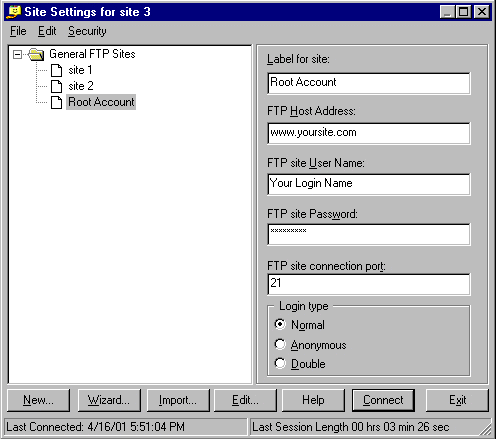
- Label for site: Enter a name for this account.
For example, "My Root Account."
- FTP Host Address: www.mydomain.com
- FTP Site Username: Your main system login name
- FTP Site Password: Your main system password
- FTP Site Connection: Port: 21
- Login Type: Normal

Notes
About Cute FTP:
There are a few advanced features you may want to be aware of. These
features may need to be enabled if you're having problems accessing
your site via an FTP client. The following will explain:
Trouble accessing your site via FTP:
This can sometimes occur if your accessing the Internet from behind
a firewall, personal router, or using an Internet connection sharing
system such as NAT (Network Address Translation). This is often a class
case scenario in a home or small office where several computers are
being shared by one Internet connection. Symptoms include,
difficulty logging in via FTP, and or maintaining a reliable upload
or download session.
Use Passive Mode instead:
From your FTP main interface, select:
1. Edit (from the main dropdown
menus)
2. Settings
A dialog box called "Settings" now appears. Select:
3. Connections
4. Firewall
This opens the Connection/Firewall dialog box:
5. Check the box that says "PASV mode."
6. Click OK
Don't touch any of the other settings
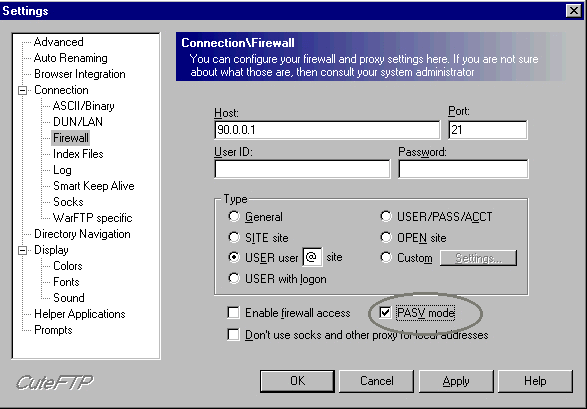
Ignore all other settings you see here
except for the "PASV_mode" setting!
Give it a try and see how it works. If you're still having problems,
you should contact your ISP to see if they can make the necessary changes
required for you to access your site via FTP. There are a vast number
of network configurations ISP's sometimes use, and some of which that
can cause problems for users wanting to access the web beyond that of
a browser.
How to view all files in your account
(For Advanced Users).
Advanced users may want ability to view "all hidden" files
in their directories. While most of these are critical system files,
there are a few, which can be manually edited by "Advanced Users."
This is done by inserting an entry into the "File Masking"
feature in the client.
Unmasking Hidden Files:
1. Open Cute FTP
2. Go to the site manager
3. Select your account
4. Select "Edit"
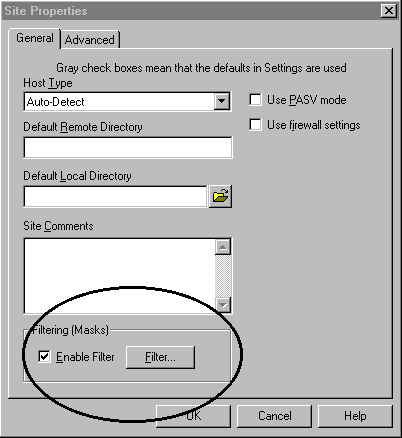
A dialog box opens called "Site Properties":
1. Check the "Enable Filter" box
2. Click the "Filter" button
3. Check the " Enable Remote Filters (Server
Applied Filer) " box
4. In the "Remote Filter" window, type this command -a
5. Click ok
That's it!
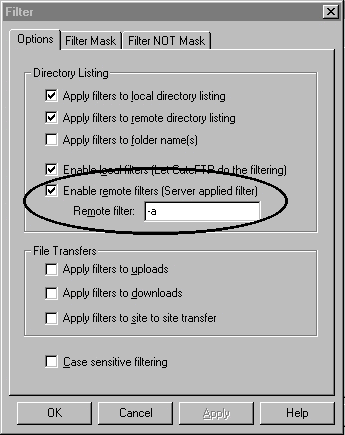
The -a command will
unmask "all" files in your web account.
Final Note:
NEVER REMOVE OR ALTER FILES, WHICH HAVE BEEN CREATED BY THE SERVER or
C-Panel!! Unless you're an advanced user, please leave all files
that have been created by the system alone! Doing otherwise could cause
serious problems with your account, and in some cases take it offline
completely. When in doubt "ASK", do not Delete!
Setting
Up WSFTP

Please note that there are a number of older
and current versions of WSFTP floating around. As a result, some of
the instructions provided here cannot possibly reflect all the versions,
which have been released in the past 5 years. The only small difference
you may encounter is where some of the options can be found (depending
on the client version you're using). In any event, everything is pretty
well much the same.
Setting
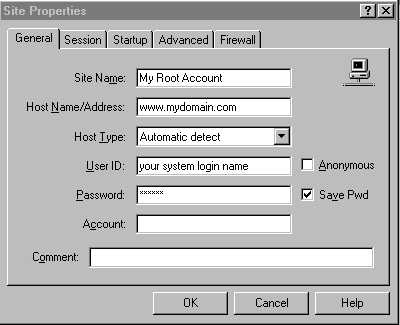
up WSFTP:
1. Open your WSFTP client
2. The dialog box "WS_FTP" Sites should display. If not, click
the "Connect" button.
3. Select "New"
You should see this dialog box:
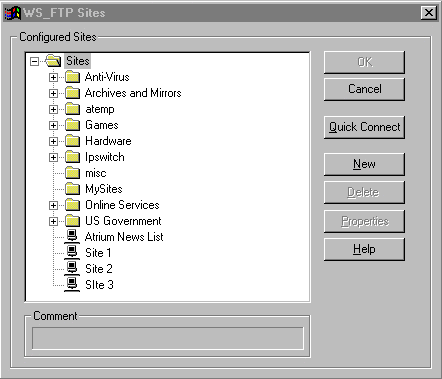
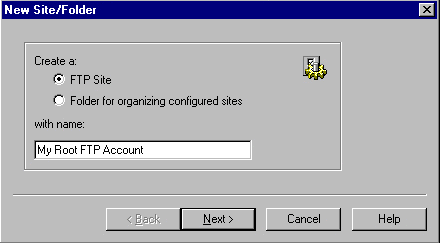
You'll be taken through
these options:
1.
New Site/Folder: Choose a name for this account
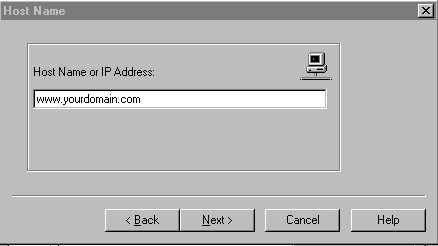
2.
Host Name or IP address: www.yourdomain.com
3.
User ID: Main system login
4.
User Password: Main System Password
5. Select "Save
Password."
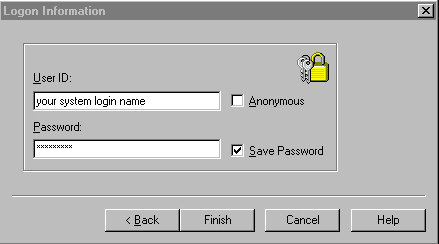
6. Select "Finish."
Done! Your can now FTP into your site
Notes About WSFTP:
Main Username and Password:
The main Username and Password was sent to you in your welcoming email,
and are also the same ones used to access C-Panel. If you've changed
your "main" Username and Password before
setting this up, then use you must use them instead.
Trouble accessing your site via FTP:
This can sometimes occur if your accessing the Internet from behind
a firewall, personal router, or using an Internet connection sharing
system such as NAT (Network Address Translation). This is often a class
case scenario in a home or small office where several computers are
being shared by one Internet connection. Symptoms include,
difficulty logging in via FTP, and or maintaining a reliable upload
or download session. If this is the case, try "Passive Mode."
Setting Passive Mode:
1.
Open the WSFTP account manager
2.
Highlight your account
3.
Select "Properties"
4. Select the
"Advanced" tab
5. Check the box called
"Passive Transfers."
6. Click "OK"
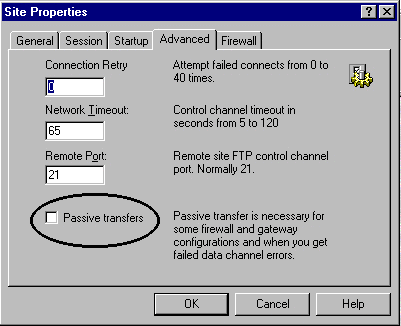
Select passive mode, click
"OK", and try it again.
How to view all files
in your account (For Advanced Users).
Advanced users may want ability to view "all
hidden" files in their directory. While most of these are critical
system files, there are a few, which can be manually edited by "Advanced
Users." This is done by inserting an entry into the "File
Masking" feature in the client.
Unmasking Hidden Files:
1. Open the WSFTP account manager
2. Highlight your account
3. Select "Properties"
4. Select the "Startup" tab
5. In the "Remote File Mask"
window, enter -a
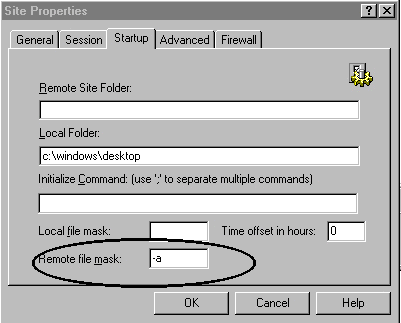
The -a command will
unmask all files in your web account.
Final Note:
NEVER REMOVE OR ALTER FILES, WHICH HAVE BEEN CREATED BY THE SERVER or
C-Panel!! Unless you're an advanced user, please leave
all files that have been created by the system alone! Doing otherwise
could cause serious problems with your account, and in some cases take
it offline completely. When in doubt "ASK",
do not Delete!
FrontPage
and FTP:
If you're planning on using Microsoft FrontPage
to manage your web site, there are a couple of issues things you may
want to keep in mind:
There are two worlds. The General Unix hosting world, and the Microsoft
world. While this is not necessarily a bad thing, Microsoft had indeed
decided to play by its own rules. As a result, FrontPage does
not always conform to the rules of Unix, so you should be extremely
careful when accessing a FrontPage web via FTP. It's easy to damage
the FrontPage web, as well as it's associated server extensions, and
if it happens, you may lose the ability to administrate it from your
FrontPage Explorer. To avoid problems like this:
- Do not alter, or delete files that are
part of a FrontPage web
- Do not delete, move, or alter directories
ending in _vtf. These are the FrontPage extensions
The ultimate solution:
If possible, try to create your FrontPage webs in sub-directories of
your root. For example, http://www.yourdomain.com/home.
This way, you can safely FTP into your root account to perform other
tasks, while avoiding the FrontPage webs, which are safely out of the
way in their own separate homes. Remember! DO NOT delete any folders,
which end in _vtf! This will kill your FrontPage web, and we'll have
to reinstall the extensions for you. For additional information
on FrontPage, please see our dedicated tutorial
on it.
|