|
 |
Managing
your web with FrontPage
Based
on Microsoft Page 98
|
|

What
is Microsoft FrontPage?
Microsoft FrontPage is a WYSIWYG (what you see is what
you get) editor. It allows you to create a fully
functioning web site on your local PC, and then seamlessly
upload it to your account, thus avoiding the need for
using FTP clients and so forth. FrontPage is especially
useful if you're planning on building/managing many
sites, as it allows you to create all of them in separate
accounts, both on your local computer, as well as the
server. It has a number of built in features and
templates, such as web themes, guest books, and ability
to allow other users to author, and administrate your
web with their FrontPage clients by assigning them private
user accounts. You can also password protect directories
using the FrontPage administrative features.
Seamlessly
integrating FrontPage with your web site:
If you want FrontPage to
seamlessly integrate with your web site, then you must
request the "FrontPage Extensions"
to be installed. You were given the option to do this
when signing up for your account package, however you
may have them installed at a later time by sending a
request to support.
Setting up FrontPage to
work on our servers:
1. Open your FrontPage Explorer
2. Open the web you would
like to upload
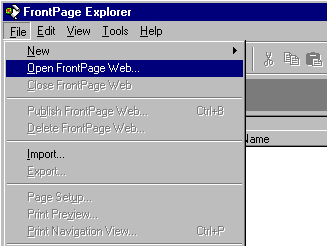
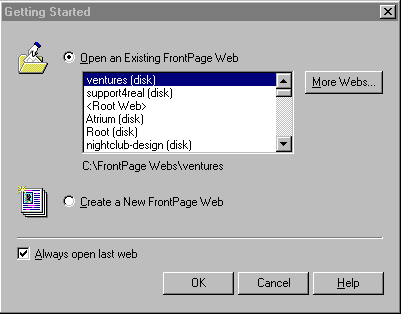
3. Select the "
Web" you would like
to publish:
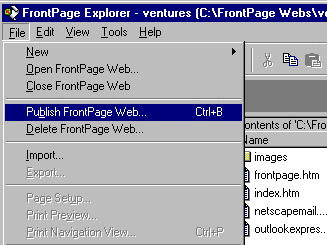
4. Once the web is
open, select "Publish To
Web":
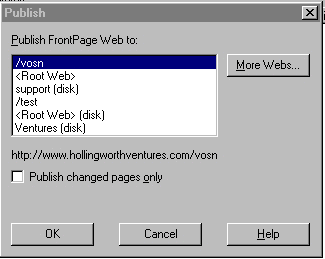
FrontPage will display
all current webs on your local PC. Select the
one you want to upload, and you'll see the following
dialog box:
Please
be advised of the following issues before proceeding:
Uploading
a web using a URL or IP number:
FrontPage will "Always"
display the last "remote server" a particular
web was uploaded to. If you have never uploaded
the site to a remote server, then it will not display
the last remote site it was uploaded to. If your
domain name "is not" officially answering
to your new account on our server as of yet, then you
can try using your web sites IP number until you're
certain that www.yourdomain.com
is answering to this account. Please Note!
FrontPage will not always function correctly when attempting
to upload a web with an IP number, as opposed to a fully
qualified domain name URL. If this happens,
please wait until your official domain name is responding
to our servers.
Proceed
with Step 5:
From the "Publish
FrontPage dialog box" select "More
Webs" and the following option will appear:
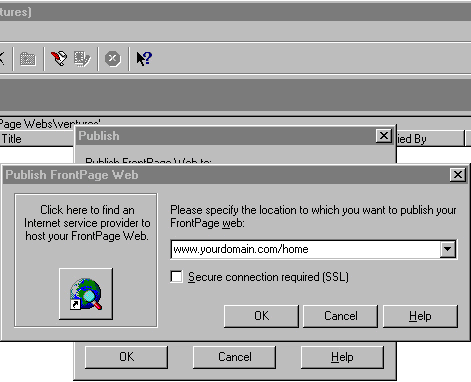
Enter the location of where
you'd like your web to reside on the remote server,
then click "OK"
FrontPage will confirm this location
in its following dialog box. Click "OK"
once again. You'll now see a Username and Password
prompt. Enter the Username and Password we provided
you with in your welcoming email message. Even if
you've since changed your main system password, the
"original" one we sent is the "only"
one that will authenticate FrontPage.
If all goes well, you'll
observe a message in the bottom left of the FrontPage
Explorer stating "Publishing to FrontPage Web"
Once this message disappears, and the
"RED STOP" icon is no longer illuminated,
your web is successfully uploaded. To call it
via the WWW, enter the same URL into a browser that
your used to upload the web with.
Important
Notes:
C-Panel
administration features should *Never*
be used to administer a FrontPage web, as it will damage
it. Repairing a FrontPage web means we must "reinstall"
the FrontPage extensions into your account. In
the event you request this option, make sure your entire
FrontPage web is backed up on your local computer before
asking us to do so.
All
logos and trademarks in this document are property of
their respective owner.
All the rest copyright © 2002 by vosn.net.
|